> ## Documentation Index
> Fetch the complete documentation index at: https://help.mtune.co/llms.txt
> Use this file to discover all available pages before exploring further.
# How to view my transactions
> Learn how you can view your transactions breakdown on Edits On Demand!
## Project Transactions
All projects that have been paid are organized in transactions in your [**Manage Payments & Billing**](https://edits.mtune.app/my/payments/) section. Below is what each project payment will look like collapsed:
 Here you can view the date and time of your payment in your local timezone, along with the project name and the amount paid.
Once you click on each project transaction you will see the full project breakdown like below:
Here you can view the date and time of your payment in your local timezone, along with the project name and the amount paid.
Once you click on each project transaction you will see the full project breakdown like below:
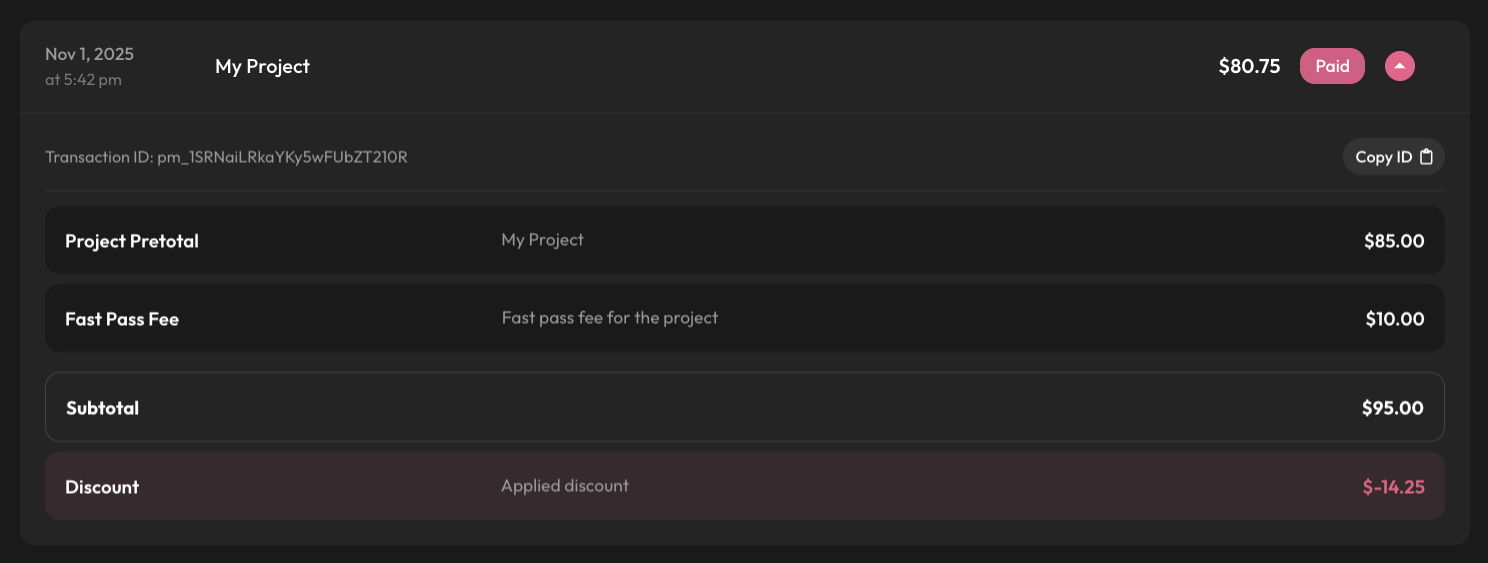 Here you can now see the following:
**Transaction ID** - The ID of the payment associated to this project \
**Project Pretotal**- The total of the project before fees applied \
**Fast Pass Fee** - You will only see this fee if you have selected fast pass for an edit in the project \
**Subtotal** - The total of the project before discounts \
**Discount** - The applied discount amount at checkout (if applied)
If you ever need help with a transaction or notice incorrect pricing or any issue related to billing you can always click **Copy ID** on a transaction and start a chat with us at anytime to further look into the issue!
If you are logged into your M.Tune account click here to be taken right to your Project Transactions! If you are not logged in it will first redirect you to login to continue.
Here you can now see the following:
**Transaction ID** - The ID of the payment associated to this project \
**Project Pretotal**- The total of the project before fees applied \
**Fast Pass Fee** - You will only see this fee if you have selected fast pass for an edit in the project \
**Subtotal** - The total of the project before discounts \
**Discount** - The applied discount amount at checkout (if applied)
If you ever need help with a transaction or notice incorrect pricing or any issue related to billing you can always click **Copy ID** on a transaction and start a chat with us at anytime to further look into the issue!
If you are logged into your M.Tune account click here to be taken right to your Project Transactions! If you are not logged in it will first redirect you to login to continue.