> ## Documentation Index
> Fetch the complete documentation index at: https://help.mtune.co/llms.txt
> Use this file to discover all available pages before exploring further.
# What is a Project?
> Learn what a Project is on Edit On Demand and how it can help you stay organized!
## So.... What is a Project?
**Im glad you asked!** A project is a simple way to organize and submit all your Single Track or Multi Track Edits in one place. This helps save you both time and efficiency.
This also allows you to save money with Single Track Edits as the more you add the lower the price per edit goes down. For Multi Track Edits these are priced per edit due to being more complex.
## Adding A New Project
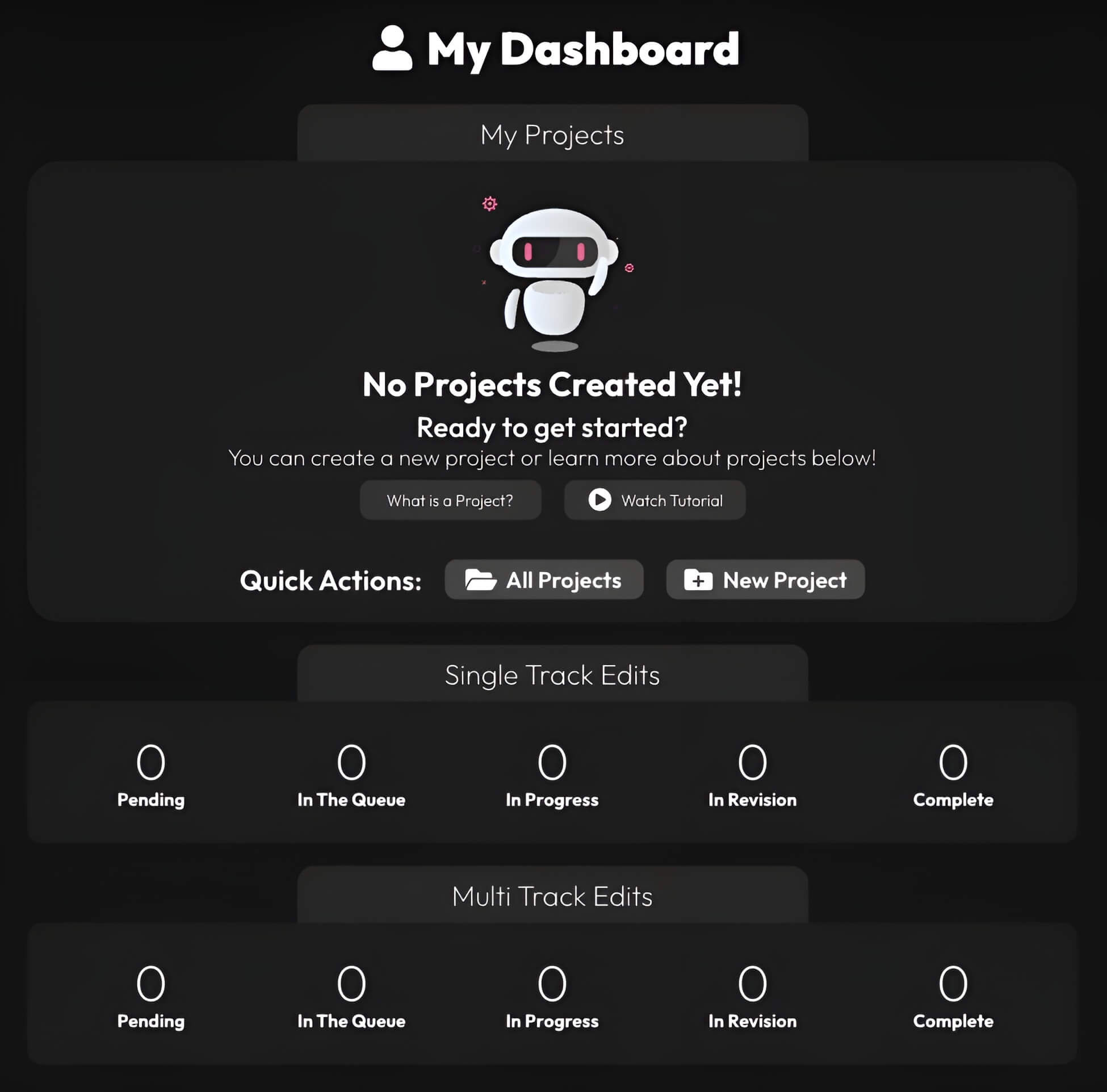
You can create a project in two ways: directly from **My Dashboard** or from within **My Projects**.
### From My Dashboard
You can click **New Project** like below to create a new project from My Dashboard.
 ### From My Projects
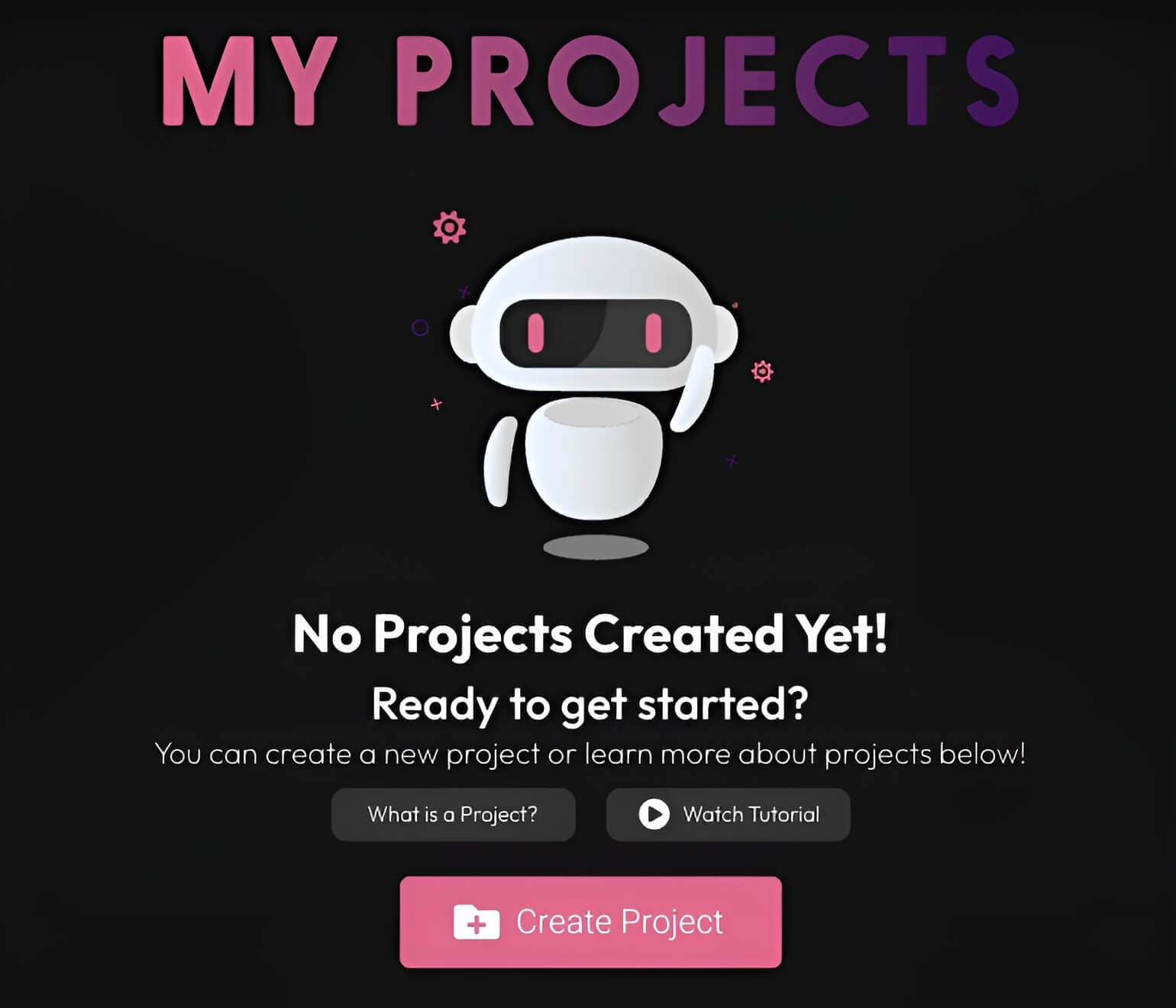
You can click **Create Project** like below to create a new project from My Projects.
### From My Projects
You can click **Create Project** like below to create a new project from My Projects.
 When you click on either **New Project** in dashboard or **Create Project** in projects you will be prompted to start the process as shown below.
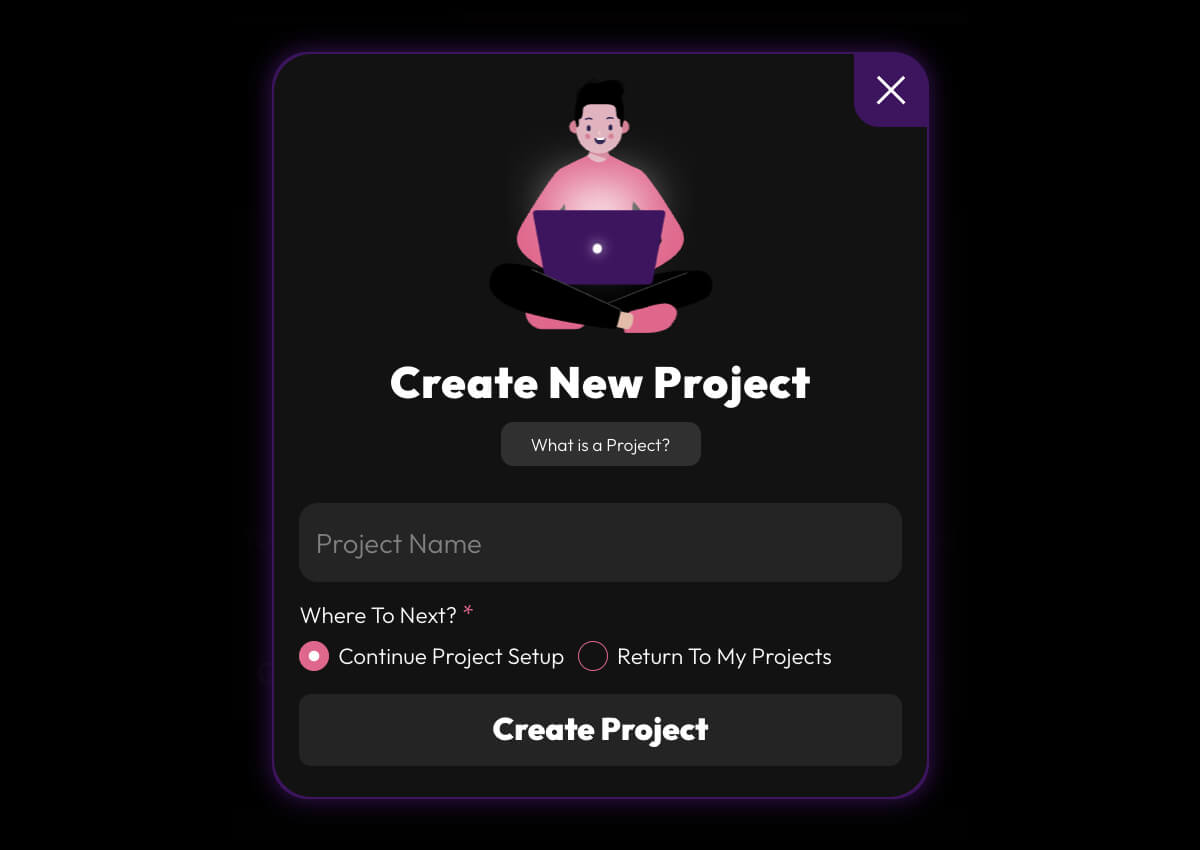 From here you can choose your **Project Name** and then you can choose if you want to continue to setup your project or just create it and save it for later.